Article
Tracking New Conversations - Unthread
2 min read
Last updated 11 months ago
Once you have added the Unthread app for Slack and connected it to one of your channels, you’ll automatically start seeing conversations tracked in your inbox.
⚡️ Automatic Tracking (Default)
The next time someone outside of your Slack organization sends a message into the channel, a conversation will be tracked and added to your inbox. For more of an explanation of automatic tracking, read up on how conversations are tracked. 
🔎 Manually Tracking Conversations
If you’d like to track a conversation now without a customer message, you can add one manually.
Use Emojis
By default, the 🎫 emoji will trigger a new ticket. You can customize this in the “Settings” > “Slack” section of your dashboard
Use a Message Shortcut
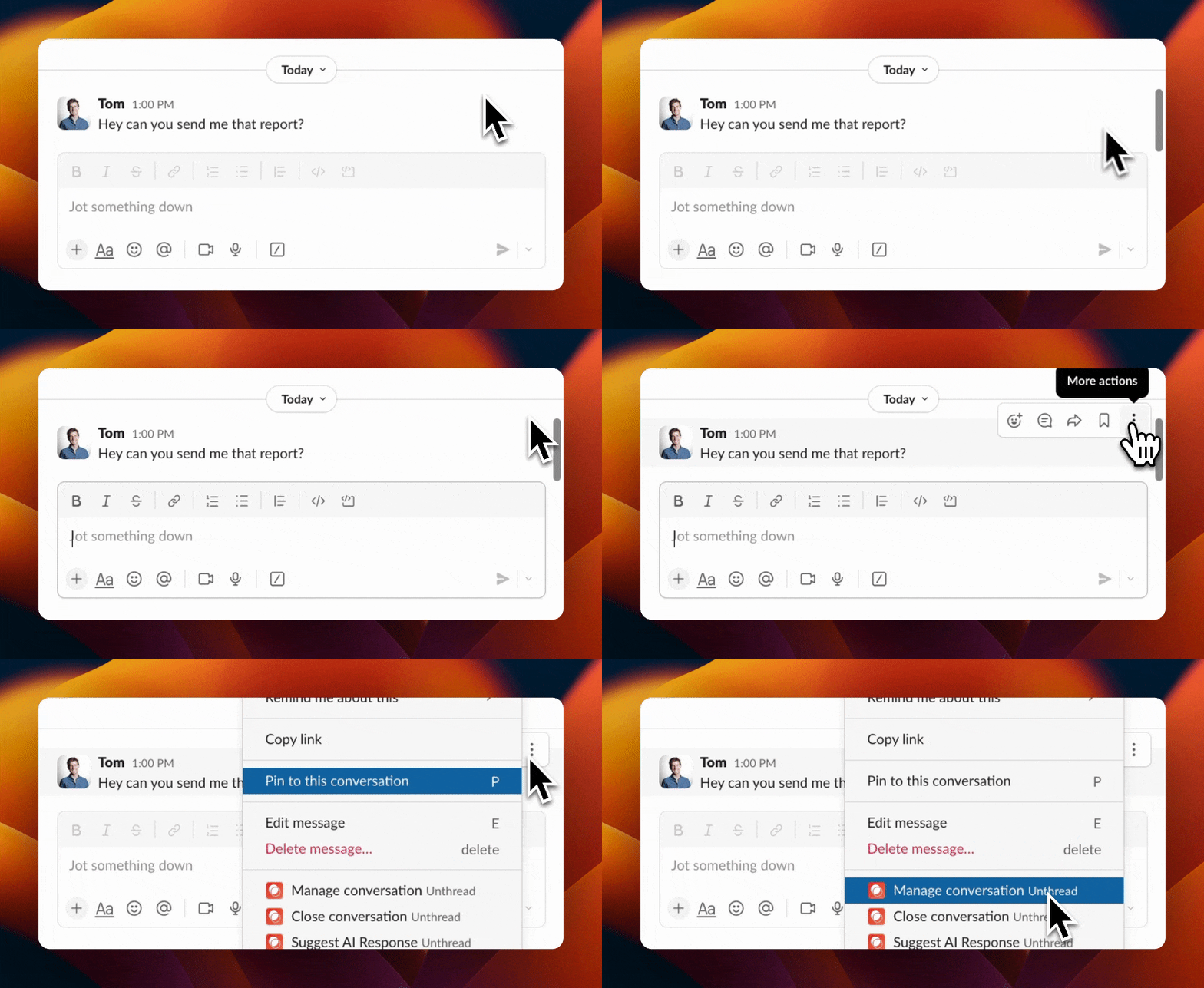
To use the message shortcut:
- Hover over a message in a channel
- Click the three dots, and select “Manage conversation”. Note: if you don’t see that option, you may need to click “More message shortcuts…”
- A modal will appear with some basic details. Click “Save” and you’ll see it in your inbox!
ℹ️ Troubleshooting
Someone sent a message in the channel but I don’t see it tracked?
This may be because of the following:
- Only messages from “Customers” (aka someone who’s not in your workspace) are tracked. This means if your team member sends something, it won’t be tracked as a ticket.
- The channel must be connected to Unthread. Read up on how to connect your channels.
- Do you have automating ticket tracking disabled? You can find this under Settings > Slack.
- Greetings and thank you’s are automatically ignored and won’t create a conversation.